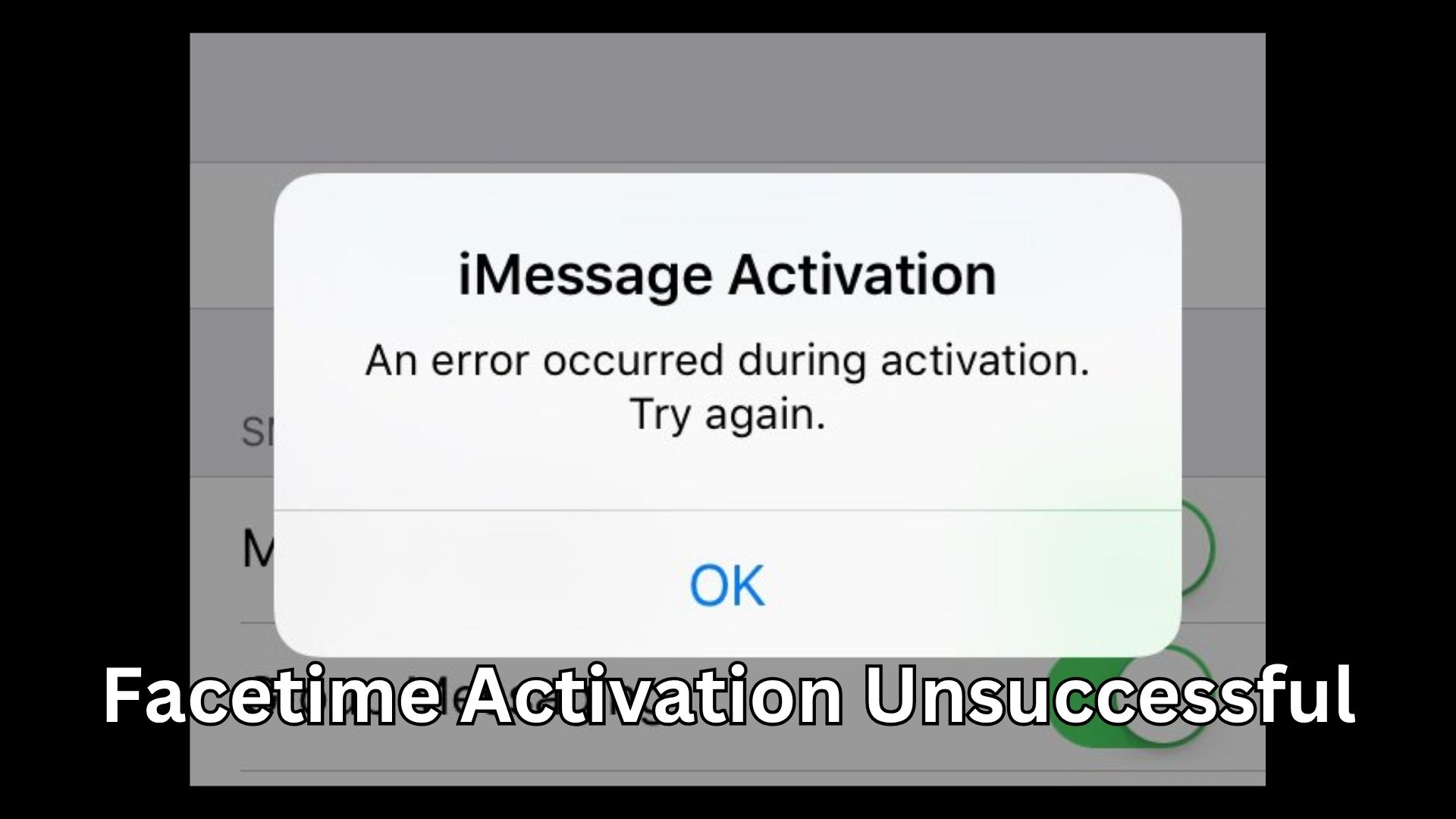
Facetime activation unsuccessful is one of those errors that instantly ruins your mood, especially when you just want to make a quick call and it simply refuses to work. This issue has become surprisingly common in 2026, and the worst part is that most guides only scratch the surface without addressing the real reasons behind it. If you’re stuck in this loop where your iPhone keeps showing activation failed, you’re not alone—and more importantly, you’re not out of options.
This guide is not just another generic fix list. It’s built around real user frustration, actual scenarios, and deep explanations so you finally understand what’s going wrong—and how to fix it permanently.
The Real Pain Behind FaceTime Not Activating
Many users think this is just a small glitch, but it’s more than that. When FaceTime doesn’t activate, it breaks a core feature of your device. Imagine buying a premium phone and not being able to use its built-in communication tools.
Some people report waiting hours, even days, seeing the same “Waiting for activation” message. Others try everything from restarting the phone to resetting settings, yet nothing works. The confusion grows when iMessage works fine but FaceTime doesn’t.
This happens because FaceTime activation is not just a simple toggle. It depends on network authentication, SMS verification, Apple servers, and SIM configuration—all working perfectly together.

Why This Problem Is More Common in 2026
The issue has become more frequent due to stricter network security, regional restrictions, and changes in how Apple verifies phone numbers. Many carriers now block international SMS by default, and FaceTime activation depends on sending a silent SMS to Apple servers.
If that SMS fails, activation fails.
Another factor is dual SIM usage. With more people using eSIM and physical SIM together, conflicts can occur that prevent proper verification.
The Hidden Causes Most People Ignore
Before jumping into fixes, it’s important to understand what’s actually causing the problem. Without this clarity, you’ll keep trying random solutions.
Sometimes your device has the wrong date and time settings. This seems minor, but it directly affects Apple’s authentication process.
Other times, your SIM doesn’t have enough balance to send an international SMS. Even a few cents missing can block activation.
In some cases, your carrier silently blocks Apple’s activation message, especially if international messaging is disabled.
And then there’s Apple’s server status. If their activation servers are down, nothing you do will work.
How do I fix unsuccessful FaceTime activation?
This is the question most users search for, but the answer isn’t just one step—it’s a sequence that needs to be followed properly.
First, make sure your internet connection is stable. Activation requires a strong WiFi or mobile data connection. Weak signals often interrupt the process.
Then check your date and time settings. Set them to automatic. Incorrect time settings can break authentication instantly.
Next, turn FaceTime off, restart your phone, and turn it back on. This resets the activation request.
Now comes the most important part—ensure your SIM has enough balance and can send international SMS. This is where most people fail without realizing it.
If the issue persists, sign out of your Apple ID and sign back in. This refreshes your account connection with Apple servers.
Finally, reset network settings. This clears any hidden configuration conflicts that might be blocking activation.
Why can’t I activate my number on FaceTime?
This problem usually points to a deeper issue related to your phone number verification.
FaceTime uses your number by sending a hidden SMS to Apple’s servers. If that message doesn’t go through, your number won’t activate.
There are several reasons why this happens. Your carrier might block international messages. Your SIM might not support this feature. Or your number might not be properly registered in your device settings.
Another overlooked issue is using a new SIM. Sometimes it takes a few hours for the network to fully register your number.
In rare cases, Apple temporarily blocks activation attempts if too many failed requests are detected. This creates a cooldown period where you have to wait before trying again.

How do I manually activate FaceTime?
Manual activation is not exactly “manual” in the traditional sense, but there are ways to control the process more effectively.
Start by inserting your SIM and ensuring it’s active. Then go to settings and disable FaceTime completely.
Wait for a few minutes before turning it back on. When you enable it again, make sure your number is selected under “Send & Receive.”
If your number doesn’t appear, try toggling airplane mode on and off. This forces your device to reconnect to the network.
Another powerful method is removing your Apple ID from FaceTime and adding it again. This often triggers a fresh activation request.
Some users also report success by switching to WiFi during activation instead of mobile data.
How much does it cost to activate FaceTime?
This is one of the most misunderstood aspects.
FaceTime itself is free, but activation is not always free.
When you activate FaceTime, your device sends an international SMS to Apple servers (usually in the UK or Ireland). This means your carrier may charge you for that message.
The cost is usually very small, but if your balance is zero or your plan doesn’t allow international SMS, activation will fail.
This is why some users fix the issue instantly after recharging their SIM—even with a small amount.
A Real Story That Explains Everything
A user from Europe recently shared their experience. They had been trying to activate FaceTime for two days. They reset their phone, updated iOS, even contacted Apple support.
Nothing worked.
Finally, they added €1 to their SIM balance—and suddenly FaceTime activated within seconds.
The problem wasn’t software. It was a simple SMS charge.
This shows how small details can cause big frustration.
The Emotional Side of This Issue
It might sound simple, but this error creates real frustration. You feel stuck, confused, and sometimes even think your phone is defective.
Many users lose trust in their device because they don’t understand what’s happening behind the scenes.
But once you know the actual cause, the problem becomes much easier to handle.

Advanced Fixes Most Guides Don’t Tell You
Sometimes the usual steps don’t work. In such cases, you need deeper solutions.
Try updating your iOS to the latest version. Older versions may have bugs affecting activation.
Check if your region settings match your SIM country. Mismatched regions can cause verification errors.
Remove and reinsert your SIM card. This simple step can refresh network registration.
If you’re using VPN, disable it. VPNs can interfere with Apple’s servers.
Also, check if FaceTime is restricted in your country. Some regions block FaceTime completely.
What Users Actually Want (And What They Deserve)
Users don’t just want a fix. They want clarity. They want to understand why something isn’t working.
Most guides fail because they throw random solutions without explaining the logic.
But once you understand that FaceTime activation depends on SMS, network, and Apple servers, everything becomes clear.
2026 Insights That Change the Game
In 2026, more users are switching to eSIM, and this is creating new activation challenges.
Some carriers treat eSIM differently when it comes to SMS routing. This can delay or block activation.
Also, Apple has increased security checks, which means activation now requires more accurate device and network synchronization.
Understanding these changes gives you an advantage most users don’t have.
The Truth About “Waiting for Activation”
This message is misleading. It makes you think the process is ongoing, but often it’s already failed.
In reality, your device is waiting for a confirmation that never arrives.
This usually means the activation SMS didn’t go through.
The Smart Way to Avoid This Problem in Future
Always keep a small balance on your SIM, even if you use WiFi most of the time.
Avoid switching SIMs frequently without restarting your device.
Keep your iOS updated and avoid unnecessary network modifications.
These small habits can prevent the issue completely.
Conclusion That Actually Helps
Facetime activation unsuccessful is not a random bug—it’s a combination of network, SMS, and system factors that must align perfectly. Once you understand this, the problem becomes much less intimidating.
Instead of trying endless fixes, focus on the real cause. Check your SMS capability, ensure proper settings, and allow the system to complete its verification process.
Most users solve this issue within minutes once they follow the right steps.
And now, you’re one of them.
FAQS
How long does FaceTime activation usually take?
FaceTime activation typically takes a few seconds to a few minutes. If it takes longer than 24 hours, there is likely an issue with SMS verification or network settings.
Can I use FaceTime without a phone number?
Yes, you can use FaceTime with your Apple ID email. However, using your phone number requires proper activation through SMS verification.
Why does FaceTime say waiting for activation?
This usually means your device is trying to verify your number but hasn’t received confirmation from Apple servers. The most common cause is a failed SMS.
Does restarting the iPhone fix activation issues?
In many cases, yes. Restarting refreshes network connections and can trigger a new activation request.
Is FaceTime blocked in some countries?
Yes, FaceTime is restricted or blocked in certain regions. In such cases, activation may fail completely unless restrictions are lifted.
Do I need internet for activation?
Yes, a stable internet connection is required along with SMS capability. Both must work together for successful activation.
Also Read: Workplace Management Ewmagwork: The Shocking Truth Behind High-Performance Teams in 2026